
CloseCore for Slack
CloseCore for Slack helps accounting teams keep month-end close work moving without switching tools. It connects CloseCore's close checklist, reconciliation, review note, transaction alert, and close progress workflows to Slack, so users can see time-sensitive accounting work in the workspace they already use.
The app solves the status-chasing problem that happens when close tasks live in one system and daily communication happens somewhere else. CloseCore sends selected Slack messages to each connected user, with enough context to understand what changed and links or actions to continue the work.
 Add To Slack
The Add To Slack flow is available after sign-in. If you are not signed in, the button opens the CloseCore login flow first, then returns you to Notifications and starts Slack authorization.
What the Slack app does
CloseCore sends Slack messages for selected accounting close events. Users choose which notification types should go to Slack from their CloseCore Notifications page. Messages are sent to the connected Slack user and do not require users to invite the bot into private customer channels.
Slack messages can include task names, review note activity, reconciliation status, transaction alert context, close progress summaries, and links back to the relevant CloseCore workflow.
How CloseCore works in Slack
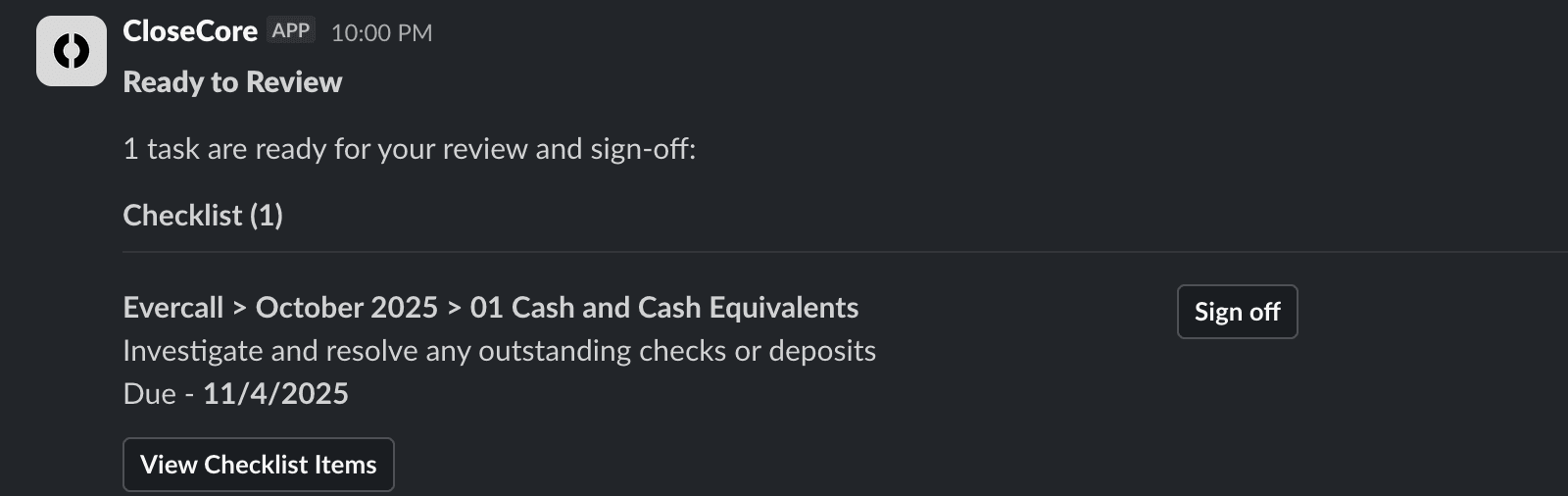
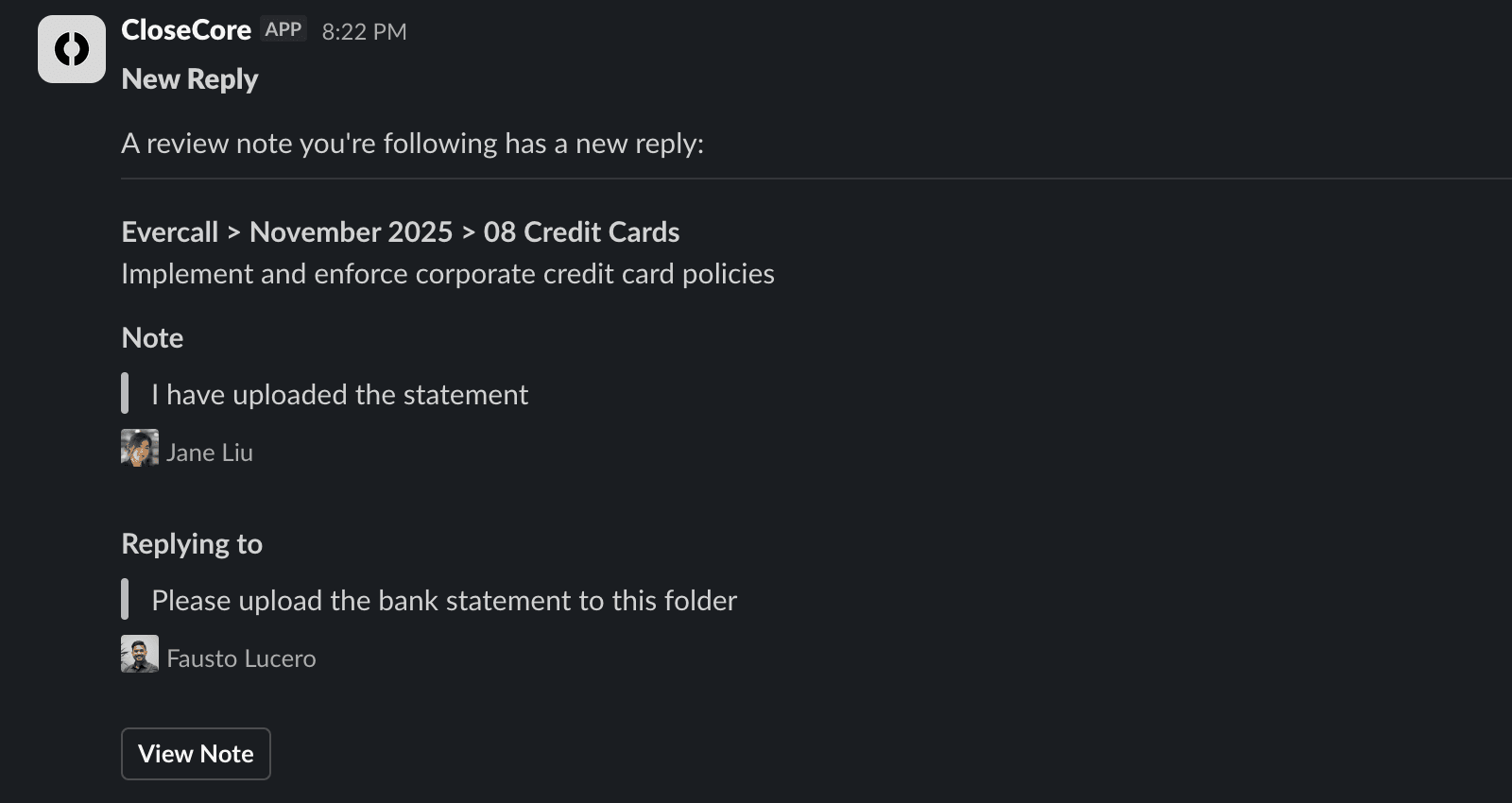
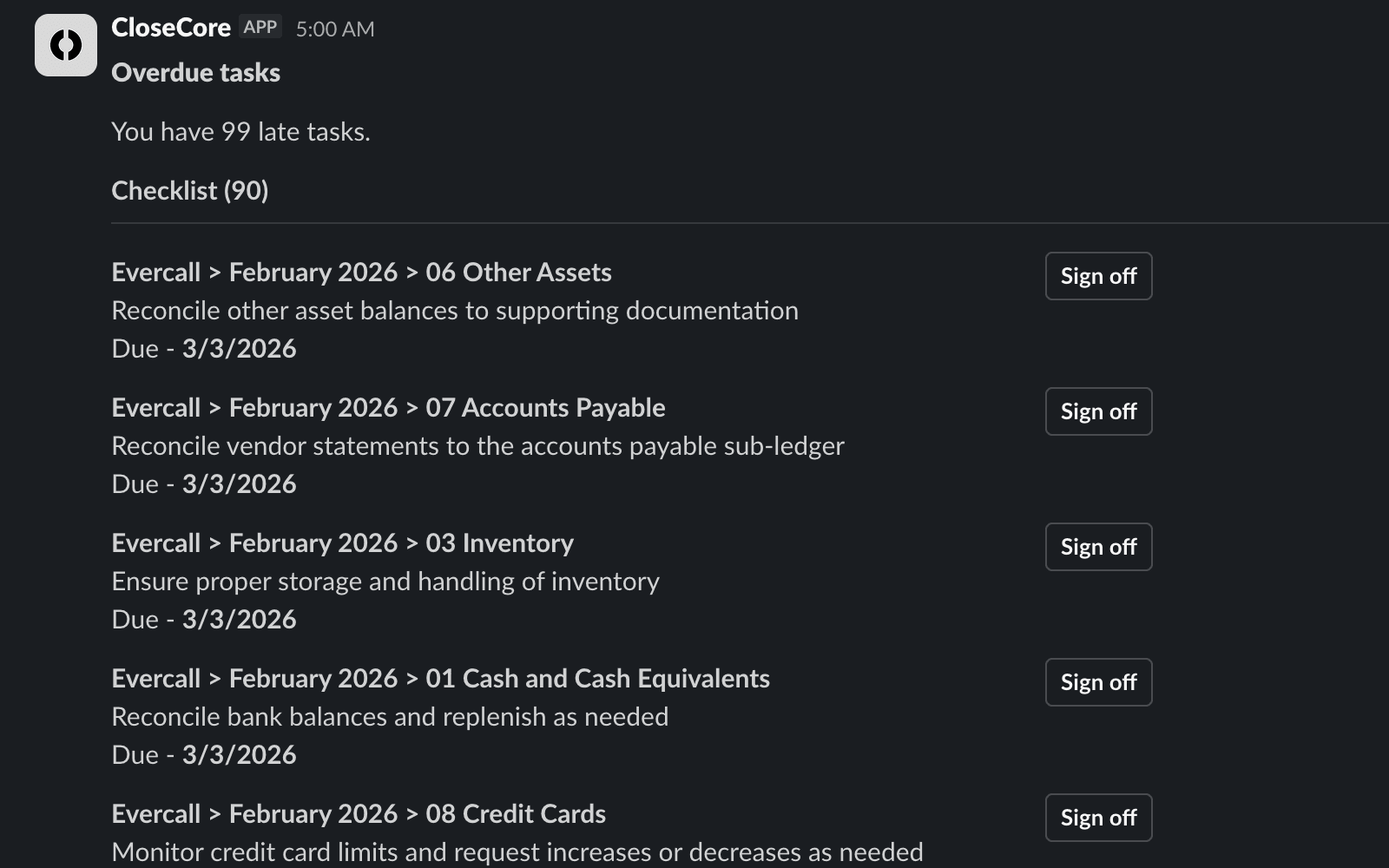
After installation, Slack notifications appear from the CloseCore app. Depending on the notification type, users can review task context, see due dates, open the related CloseCore record, or use Slack actions such as Sign off. The screenshots below show three representative examples; CloseCore supports additional Slack notification triggers listed later on this page.
Install and configure Slack
- Click Add To Slack on this page. If you are not signed in, CloseCore first opens the login flow, then returns you to the Notifications page and starts Slack authorization.
- You can also sign in to closecore.com, open the user menu at the top right, and select Notifications.
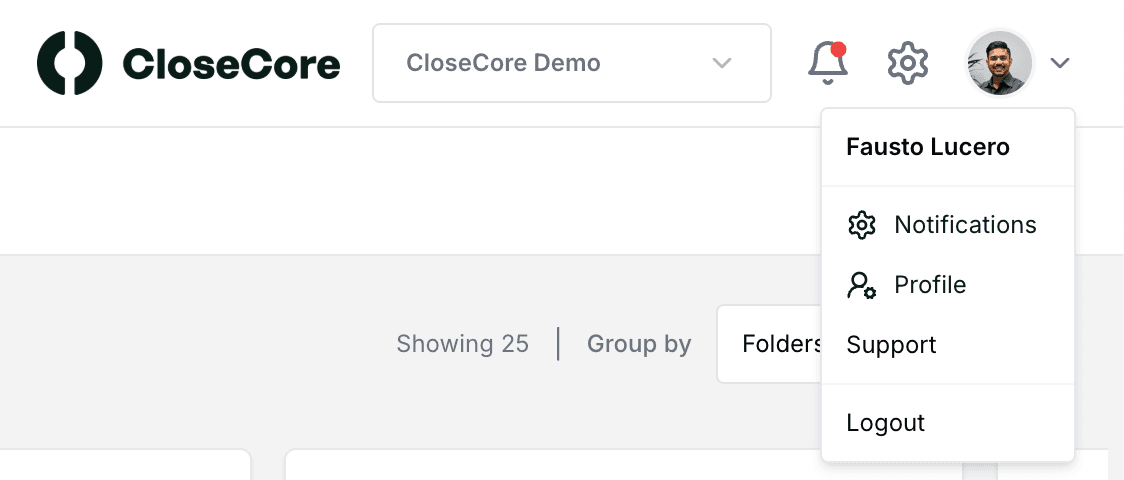
- On the Notifications page, go to Integrations and click Connect next to Slack.
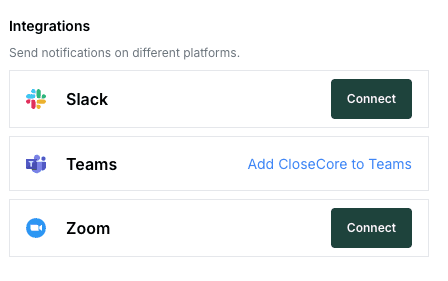
- Sign in with Slack and approve the CloseCore app. Slack then redirects you back to CloseCore's Notifications page.
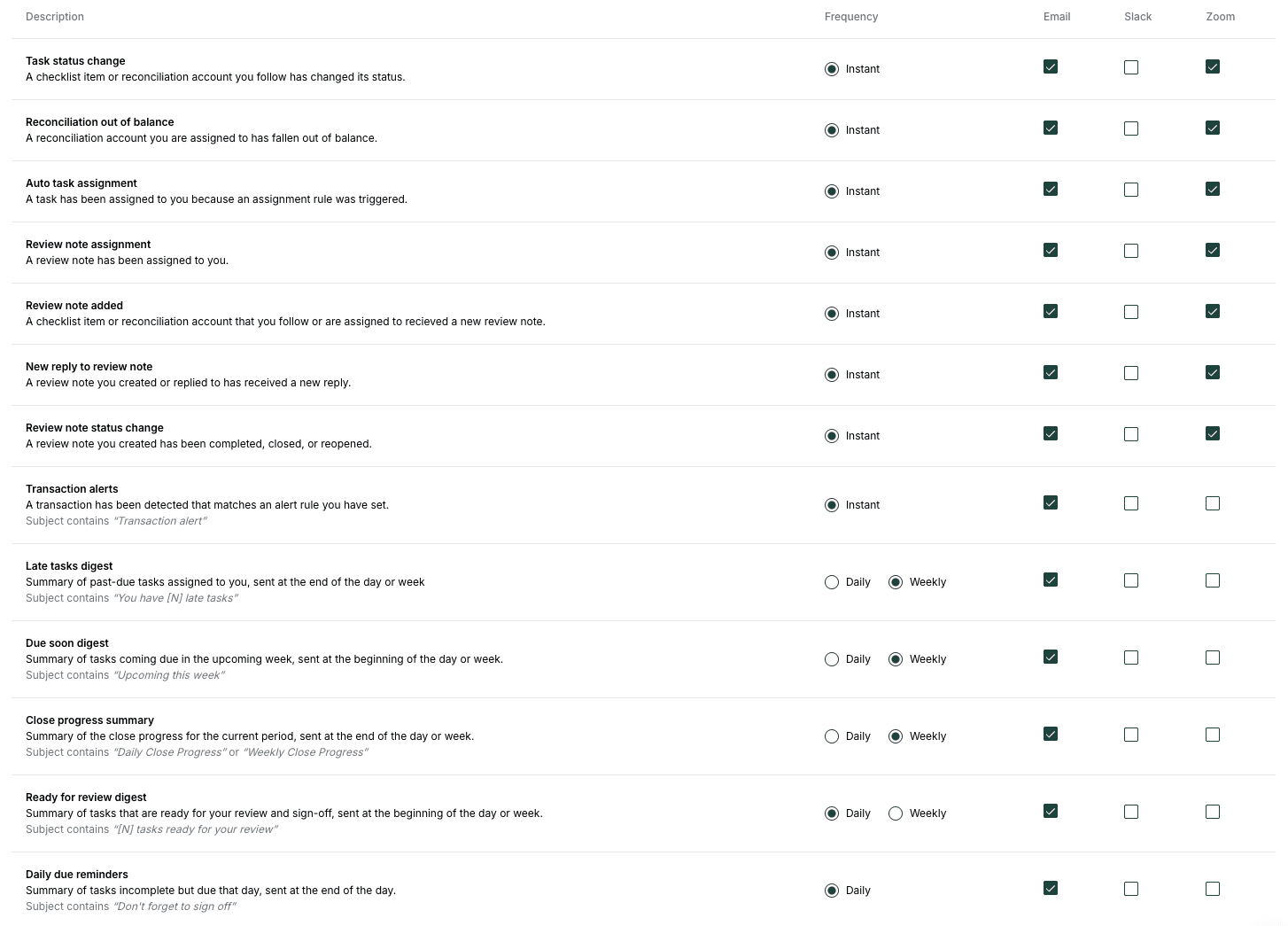
- In the notification table, enable the Slack checkbox for each notification type you want delivered in Slack.
After installation
When Slack authorization succeeds, CloseCore redirects you to the Notifications page with a confirmation that Slack is connected. That page shows the next step: enable the Slack checkbox for each notification type you want to receive.
You can start with a small set of notifications, such as ready-for-review digests and review note replies, then return later to adjust Slack, email, Teams, or Zoom preferences. The same page is also where you disconnect Slack.
Slack notification triggers
Task status change
A checklist item or reconciliation account you follow changes status.
Reconciliation out of balance
A reconciliation account assigned to you falls out of balance.
Auto task assignment
An assignment rule assigns a close task to you.
Review note assignment
A review note is assigned to you.
Review note added
A followed or assigned task receives a new review note.
New reply to review note
A review note you created or replied to receives a reply.
Review note status change
A note you created is completed, closed, or reopened.
Transaction alerts
CloseCore detects a transaction that matches an alert rule you created.
Late tasks digest
A daily or weekly summary of past-due tasks assigned to you.
Due soon digest
A daily or weekly summary of tasks coming due soon.
Close progress summary
A daily or weekly summary of current-period checklist and reconciliation progress.
Ready for review digest
A daily or weekly summary of tasks ready for your review and sign-off.
Daily due reminders
A daily reminder for incomplete tasks due that day.
Task dependency unblocked
A task becomes ready to work on after its dependency is completed.
Data and privacy
When a user connects Slack, CloseCore stores the Slack workspace information, connected Slack user ID, and Slack access token needed to send messages selected by that user. CloseCore uses this data to deliver Slack notifications, manage the connection, and disconnect the integration when requested.
CloseCore's privacy policy explains how we collect, manage, store, and protect customer and third-party data: Privacy Policy.
Disconnect from Slack
Go to https://www.closecore.com/app/user/notifications. Under Integrations, hover over Slack, click the disconnect icon, and confirm Disconnect in the popup.
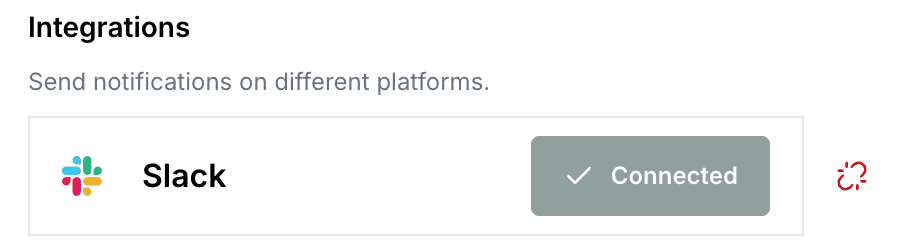
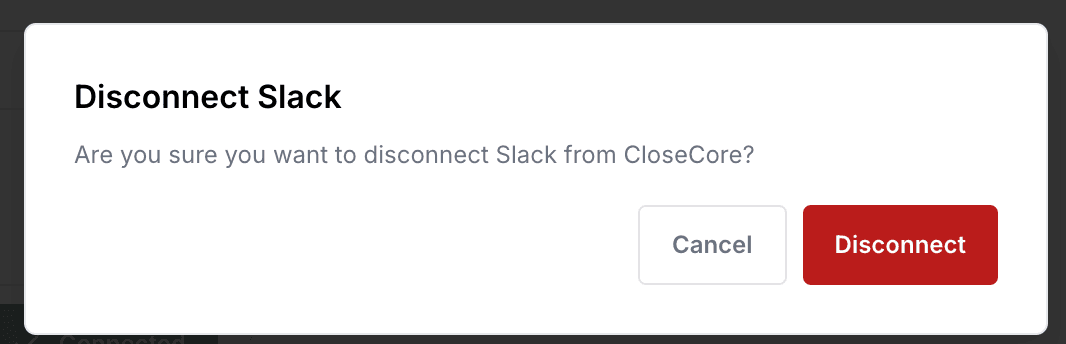
After disconnecting, CloseCore revokes Slack access and no longer sends Slack notifications for that user.
Support
For help installing, configuring, or using CloseCore for Slack, email support@closecore.com, or use the in the bottom-right corner of the CloseCore website. You do not need to create any additional account to contact support.
CloseCore support responds to Slack app support requests within 1 business day. Include your company name, Slack workspace name, the CloseCore user email that connected Slack, and a screenshot or description of the issue if available.